
App Integration
This site is an OpenAI-format-compatible gateway — any client that supports a "custom OpenAI API URL" can connect.
This page first gives the universal connection parameters, then walks through detailed configuration for Cherry Studio, Claude Code, Codex CLI,followed by a quick reference for other clients and universal troubleshooting; the multi-gateway one-click switcher CC Switch has its own page — see CC Switch.
Common Connection Parameters
All a client needs is two values:
Copy model names from Model Plaza (case-sensitive); naming conventions are in Models.
Cherry Studio
Cherry Studio is a multi-provider desktop AI client (Windows / macOS / Linux). Connect via a "custom provider" and you can use every platform model in chat.
Configuration Steps
- Open Cherry Studio and go to "Settings" (bottom-left) → "Model Services".
- Find "Add Provider" (or "Add Custom Provider") and choose the OpenAI-compatible type.
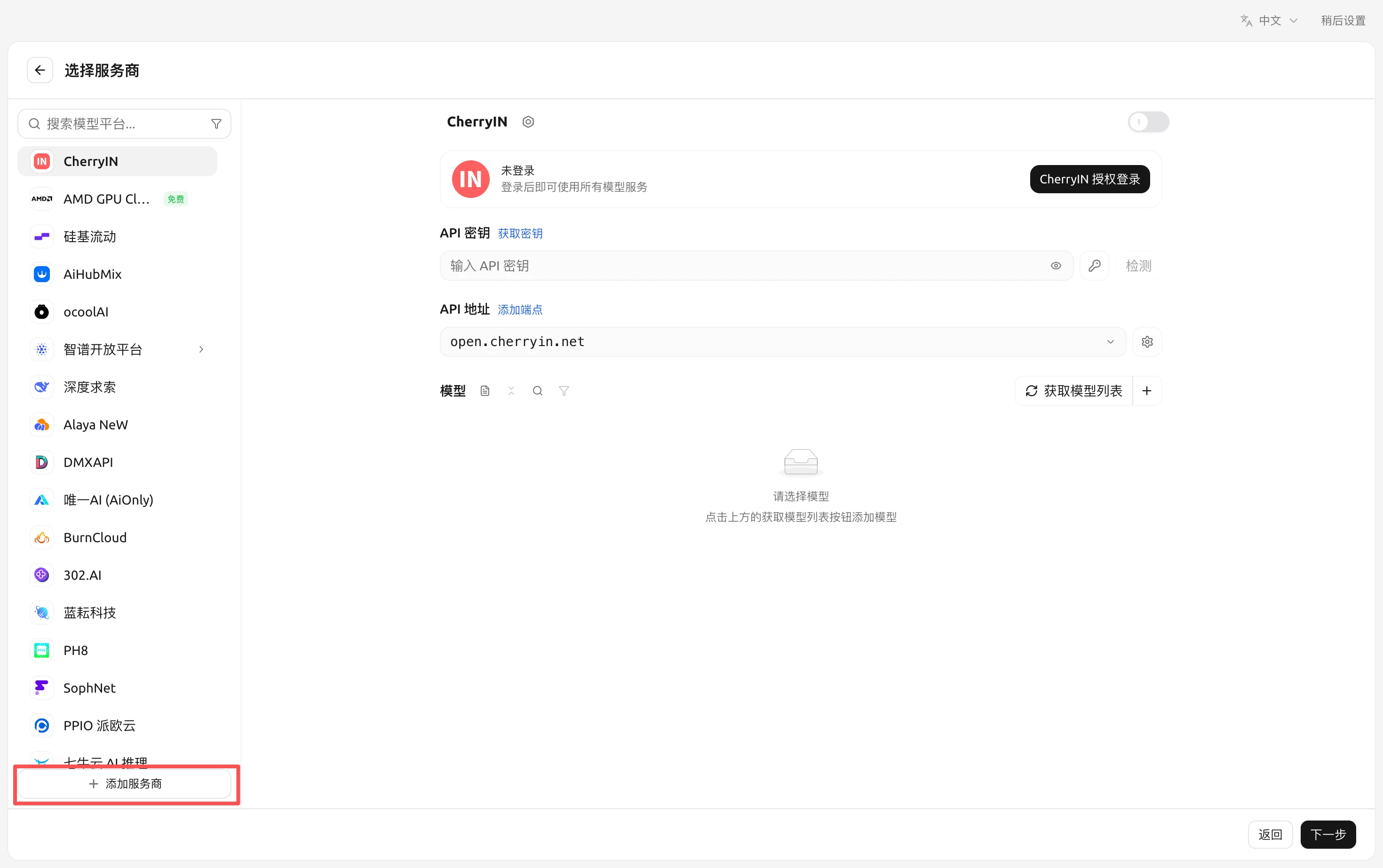
- Fill in the provider info:
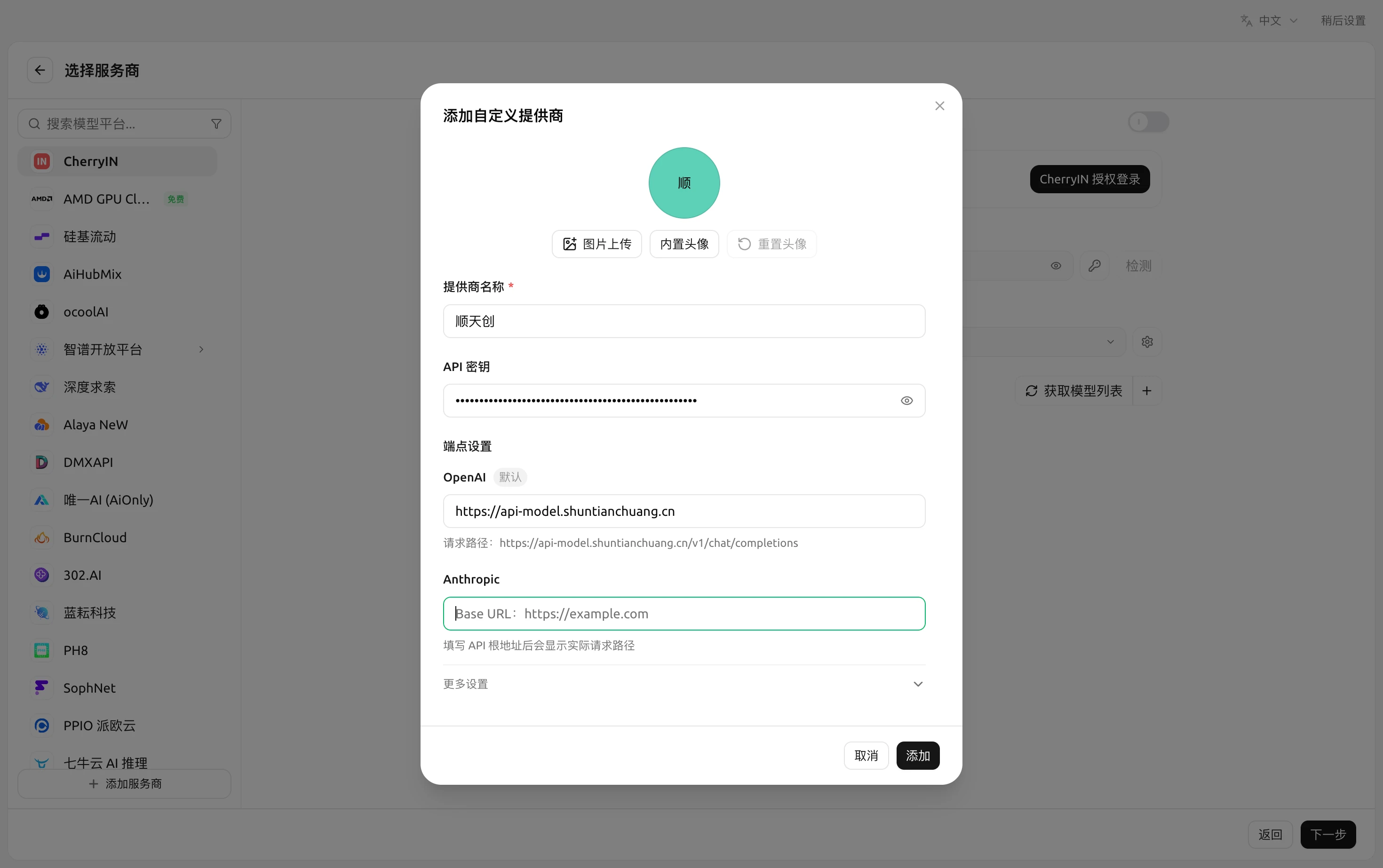
- API URL:
https://api-model.shuntianchuang.cn - API Key: paste your token (starts with
sk-, created on the API Keys page; see API Key Management)
- API URL:
- Add models for the provider:
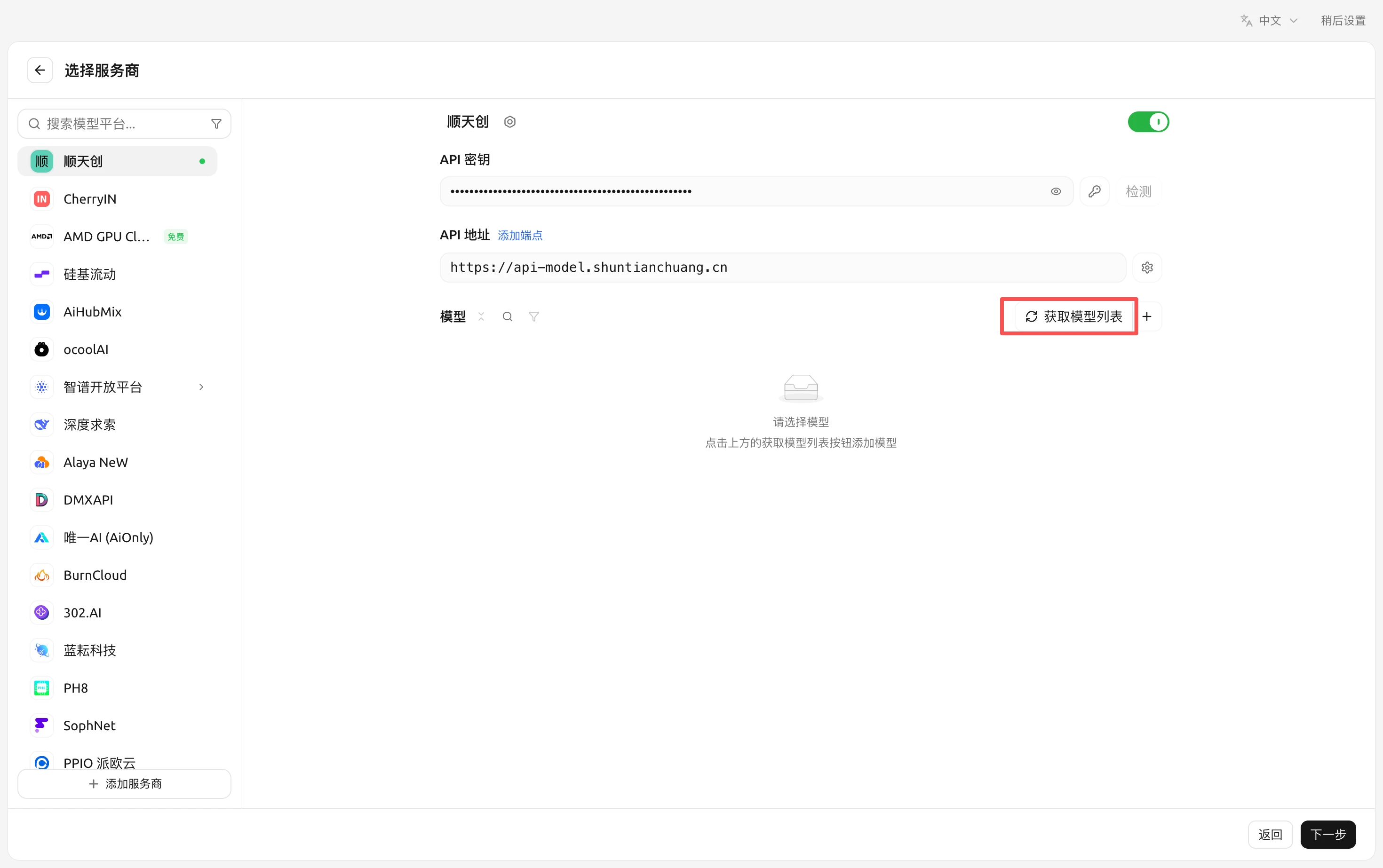
- If the client offers a "fetch model list / check" capability, click it to pull this site's models automatically
- You can also add them manually — copy names from Model Plaza (case-sensitive); starting with
deepseek-v4-flashis a good test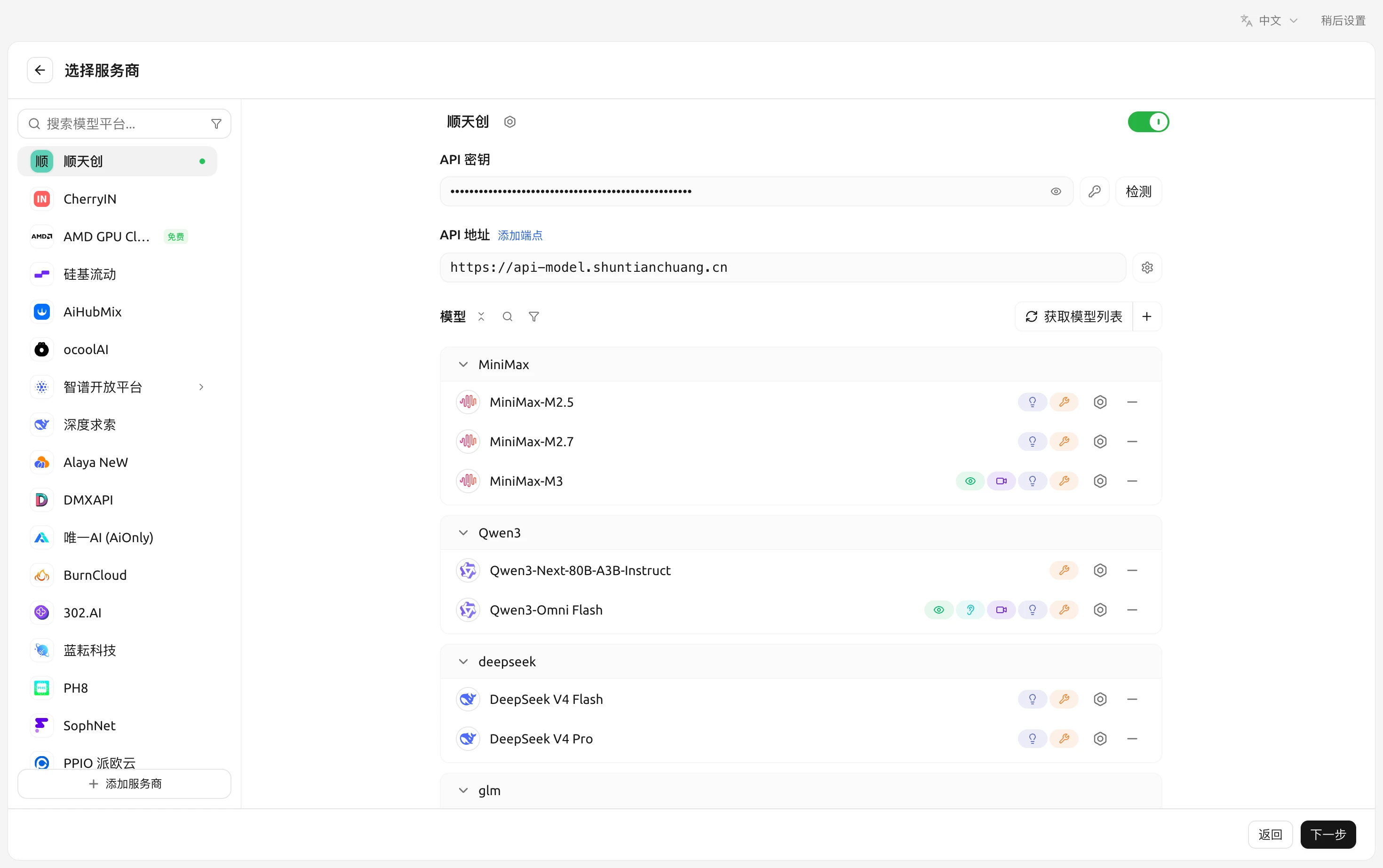
- Return to the chat view, pick the provider and model you just added, and send a test message.
Verifying Success
If you get a model reply, you're connected. You can also see this call's record and cost on the console's "Usage Logs" page — see Billing & Top-up.
Troubleshooting
Claude Code
Claude Code is Anthropic's official command-line coding assistant. The site has opened the native Anthropic endpoint (/v1/messages) — point Claude Code's request URL at this site with a site token and you're set, billed by normal usage.
Setting Environment Variables
Two variables are needed: ANTHROPIC_BASE_URL (pointing at this site) and ANTHROPIC_AUTH_TOKEN (a site token). Setting ANTHROPIC_MODEL to pick a default model is also recommended — Claude Code's default claude-* models are not hosted here, and without it you'll get "model not found".
macOS / Linux (bash)
Windows (PowerShell)
Create the token on the API Keys page; see API Key Management.
Available Models
ANTHROPIC_MODEL accepts models that support the Anthropic endpoint.
Verification
Start it in any directory:
Ask anything (e.g. "introduce yourself in one sentence") — a normal reply means success. You can also confirm the call on the console's "Usage Logs" page.
Troubleshooting
Codex CLI
Codex CLI is OpenAI's (ChatGPT's) official command-line coding assistant — point its model provider at this site via a config file and you're set.
Configuration Steps
- Edit (create if missing) the config file
~/.codex/config.toml:
- Set the environment variable (get the key from the API Keys page; see API Key Management):
Write it into ~/.zshrc or ~/.bashrc to persist.
- Verify — run in any directory:
A reply means you're connected.
Notes
modelcan be any Chat-type model from Model Plaza, e.g.glm-5.2,kimi-k2.6,qwen3.7-plus(model names are case-sensitive)wire_api = "chat"means the OpenAI Chat Completions protocol (/v1/chat/completions), which this site fully supports- Models supporting the OpenAI Responses protocol can be filtered by "endpoint type" in Model Plaza; see Models · Multi-Protocol Endpoints
Troubleshooting
Troubleshooting
Other Clients
Client UIs iterate quickly, so menu names may differ slightly from the table — but as long as you find the "custom / OpenAI-compatible provider" entry and fill in the common parameters, you're good.
Three Universal Checks
When any client fails to connect, run these three first:
- Is the URL right? Mind whether a
/v1suffix is required — see Base URLs & Auth. - Does the key have stray spaces / newlines? Copy it again from the API Keys page.
- Does the client support SSE? Streaming needs both the client and the network layer to support it — otherwise turn the streaming option off.
Still stuck? See Error Codes & Troubleshooting, or report via Contact Us.